Automating Feature Workspace maintainance in Microsoft Fabric
Using Python, the Fabric CLI and Fabric Git integration
At the Microsoft Fabric Community Conference in Las Vegas in April 2025, Microsoft announced the public preview of the Fabric CLI - a powerful, developer-first command line interface that brings a file-system-inspired way to explore and manage your Fabric environment. As someone who's been deep in the weeds with the Fabric REST APIs for quite some time (and have blogged about it before), I was excited to see how the Fabric CLI was building on the APIs to make automation more intuitive and accessible than ever.
In this blog post, I’ll walk you through how to use the Fabric CLI from within Python to support a best-practice approach for auto-generating and auto-configuring feature development workspaces in Microsoft Fabric.
In myexample, I’ll first focus GitHub Actions along with a service principal for authentication.
When this post was originally published, Service Principal authentication was only supported when using GitHub as the Git provider in Microsoft Fabric.
However, Fabric is evolving rapidly and with that evolution, we now have Service Principal support for the Git Connect operations via the Fabric REST APIs when using Azure DevOps as the Git provider as well.
⚠️ Important caveat: Service Principal is not supported when the Git provider is Azure DevOps and the authentication method is set to "Automatic".
There are additional details and setup requirements you'll want to be aware of. I’ve included a dedicated section at the end of this post covering how to configure Azure DevOps to work with a Service Principal for secure, automated workspace synchronization.
This post ties closely to my session at FabCon 2025 in Las Vegas "From Setup to CI/CD: Automating Microsoft Fabric for Scalable Data Solutions" - where I showcased an end-to-end automation approach. If you’re interested, you can find the session materials and sample code here:
🔗 Session code & presentation from FabCon 2025: github.com/gronnerup/Fabric
🛠 This article's code repo (ongoing work): github.com/gronnerup/FabricAutomation
Automating feature workspace maintainance using GitHub Actions
This section focuses on automating the setup and teardown of feature workspaces using GitHub Actions.
While the examples here use GitHub, much of the approach also applies when using Azure DevOps.
If you're working with Azure DevOps Pipelines, be sure to check out the dedicated section at the end of this post for platform-specific guidance.
Prerequisites and Requirements
Before automating the creation of isolated feature development workspaces in Microsoft Fabric using the Fabric CLI and GitHub Actions, make sure you have the following in place:
1. Service Principal Authentication
This solution uses service principal authentication with a client secret, allowing secure, automated access to your Fabric environment. You’ll need to create an App Registration in Microsoft Entra ID and ensure the service principal is properly configured for Fabric API access.
In your GitHub repository, define these repository secrets:
SPN_TENANT_ID– The Tenant ID of your Microsoft Fabric environment.SPN_CLIENT_ID– The Client ID (Application ID) of your app registration.SPN_CLIENT_SECRET– The Client Secret of the app registration.
Make sure the service principal is enabled for the Fabric REST APIs by following the official guidance:
Enable service principal for Fabric REST APIs
2. GitHub Personal Access Token (PAT)
You’ll also need to create a GitHub Personal Access Token (PAT) to enable Fabric’s Git integration. This token is used to authenticate Fabric when connecting to your GitHub repository.
Follow this guide to create a PAT and connect your workspace to Git:
Connect to a Git repo (Microsoft Learn)
3. Fork the Repository
To get started, fork the repository to your own GitHub account so you can safely configure secrets and CI/CD pipelines: https://github.com/gronnerup/FabricAutomation
This provides a clean slate to experiment and build on top of the existing automation approach.
My Approach to Continuous Integration with Git
When implementing Continuous Integration (CI) in Microsoft Fabric, it's essential to have a clear structure for both your workspaces and your Git repository. This helps ensure that your development process supports scalability, collaboration, and automation from day one.
Workspace Structure: Layer-Separated for Clarity and Control
The question of how to best structure workspaces in Fabric has been the subject of many discussions across blog posts, LinkedIn and Reddit threads. While there's no single “right” answer, my recommendation, based on practical experience and architectural clarity, is to follow a layer-separated workspace pattern.

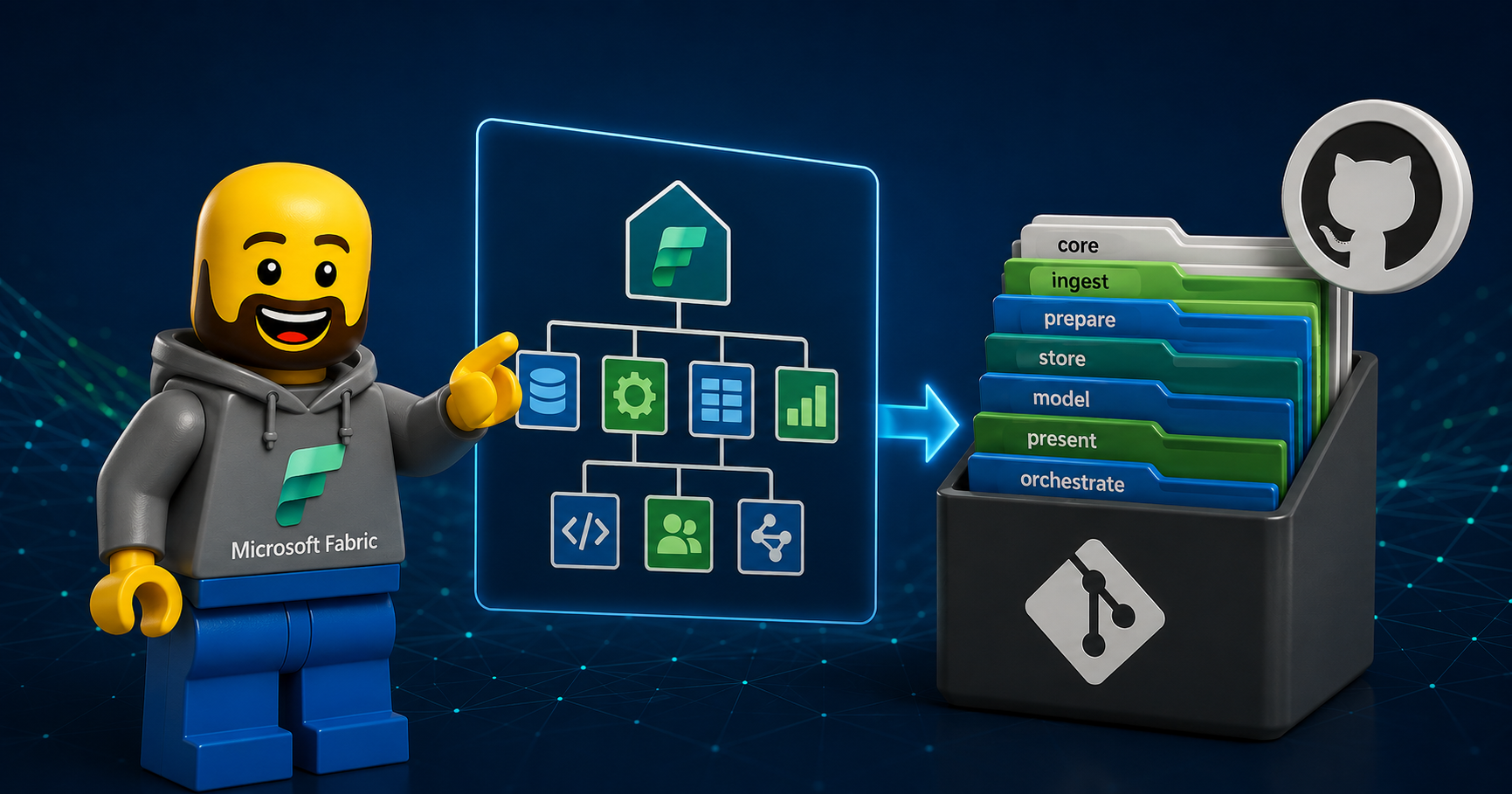
This architecture separates your Fabric solution into logical layers, such as:
Store: Lakehouse etc.
Ingest: Notebooks, Data Pipelines, etc.
Prepare: Notebooks focused on shaping and cleansing data
Serve: Semantic Models and related artifacts
Orchestrate: Data Pipelines or Notebooks driving execution logic
Core: Components such as Variable Libraries, Environments, and Fabric Databases used for metadata
Each layer gets its own dedicated workspace, allowing for:
Transparent organization of items and responsibilities
Improved access control at the workspace level
Capacity separation, which is especially useful in large-scale environments
This structure does introduce one consideration: isolated feature development workspaces may need to mirror more than one layer, depending on the scope of the feature being implemented. In other words, a single feature branch may touch multiple workspaces and that’s okay, as long as it’s organized.
Git Repository Structure: One Repo to Rule Them All
To support this workspace setup effectively, I recommend keeping all your Fabric resources in a single Git repository. Within this repo, each solution layer is represented by a subfolder, and each layer-specific workspace connects to its respective folder via Fabric’s Git integration.
A typical structure might look like this:
/.azure-pipelines    # Azure DevOps pipelines
/.github             # GitHub Actions workflows
/automation          # Scripts, deployment helpers etc.
/documentation       # Solution documentation. Can be used for Azure DevOps project Wiki
/solution            # Solution folders for the different layers
  /Core
  /Ingest
  /Orchestrate
  /Prepare
  /Serve
  /Store
This structure offers a few key benefits:
End-to-end feature branches – You can implement a business requirement across all relevant layers (and include documentation!) in a single branch.
CI/CD alignment – Makes it easier to automate build/test/deploy processes using GitHub Actions or Azure Pipelines.
Organizational clarity – Developers always know where to find and contribute to specific parts of the solution.
With this setup, isolated feature development workspaces are created dynamically and point to the relevant subfolders. This aligns perfectly with the approach demonstrated in this blog post, and it’s designed to scale with the complexity of your data platform.
Automating the Feature Development Process
As highlighted in Microsoft’s official documentation on deployment and development processes, it’s considered best practice to isolate development work outside of your main collaboration branch. This ensures cleaner version control, better collaboration, and minimizes disruption to ongoing work.
Following Git standards, development should happen in feature branches, each representing a specific unit of work. This allows for focused development, easier reviews, and safer integration into the mainline once complete.

When working in Microsoft Fabric, isolated development also means creating separate workspaces to support and validate your changes. There are two primary ways to do this:
Manual setup via the Fabric UI
Programmatic setup via the Fabric REST APIs or the Fabric CLI
But why stop at manual or semi-automated processes?
Taking It to the Next Level: Automating Workspace Creation
By leveraging GitHub Actions or Azure DevOps pipelines, we can automate the entire process of setting up and later tearing down feature development workspaces. This not only saves time but ensures consistency across environments.
In my approach, I use a recipe file that defines exactly how feature workspaces should be configured. This file, feature.json, lives in the repository at: automation/resources/environments/
{
    "feature_name" : "*{feature_name}-{layer_name}",
    "capacity_name": "MyCapacity",
    "git_settings": {
        "gitProviderDetails": {
            "gitProviderType": "GitHub",
            "ownerName": "MyGitHubProfile",
            "repositoryName": "MyGitHubRepo"
        },
        "myGitCredentials": {
            "source": "ConfiguredConnection",
            "connectionId": "00000000-0000-0000-0000-000000000000"
        }
    },
    "permissions": {
        "admin": [
            {"type": "Group", "id": "00000000-0000-0000-0000-000000000000"}
        ],
        "contributor": [
            {"type": "User", "id": "00000000-0000-0000-0000-000000000000"}
        ]
    },
    "layers": {
        "Prepare": {
            "spark_settings": {
                "pool": {
                    "starterPool": {
                        "maxExecutors": 1,
                        "maxNodeCount": 1
                    }
                }
            },
            "git_directoryName": "solution/prepare"
        },
        "Ingest": { "git_directoryName": "solution/prepare" },
        "Orchestrate": { "git_directoryName": "solution/orchestrate" }
    }
}
The key elements include:
A naming convention for feature workspaces (prefixed with an asterisk for easy visibility)
The target capacity for deployment
Git integration settings and authentication
Permissions configuration for users and/or groups
Layer-specific settings such as Spark pool resource limits can be particularly useful - for example, by configuring a single-node Spark pool, you can reduce vCore consumption and minimize the risk of hitting concurrency limits.
GitHub Workflows: Creation and Cleanup
Inside the .github/workflows folder of the repository, you’ll find two workflows:
Create Fabric feature workspaces on feature branch creation
Triggered when a new feature branch is created.Cleanup Fabric feature workspaces on merge to main
Triggered when the feature is merged intomain.
Both workflows call the Python script fabric_feature_maintainance.py (found in automation/scripts), which handles the actual creation or deletion logic. Under the hood, the script uses the Fabric CLI, calling commands via a utility function defined in: automation/scripts/modules/fabric_cli_functions.py
CLI commands are executed using a simple run_command() function:
def run_command(command: str) -> str:
    try:
        result = subprocess.run(
            ["fab", "-c", command],
            capture_output=True,
            text=True,
            check=EXIT_ON_ERROR
        )
        return result.stdout.strip()
    ...
And for functionality not yet covered by Fabric CLI commands, I use the powerful fab api command to interact directly with the Fabric REST API - for example, when connecting and synchronizing Git repositories.
Quickstart Walkthrough
Curious how this works in practice? Here’s a simple walkthrough to get you up and running with automated feature workspace creation in Microsoft Fabric.
1. Fork the Repository
Head over to:
👉 https://github.com/gronnerup/FabricAutomation
Fork it to your own GitHub account.
2. Set Up Your Secrets and Service Principal
Make sure you’ve followed the prerequisites:
Create a service principal and assign necessary API permissions
Configure your repository secrets:
SPN_TENANT_IDSPN_CLIENT_IDSPN_CLIENT_SECRET
Set up Git integration with a GitHub Personal Access Token (PAT) and create a new cloud connection in Fabric go generate the required connection id. Choose Github - Source control as the connection type.
3. Customize the feature.json recipe file
Edit the file automation/resources/environments/feature.json
Define how your feature workspaces should be created:
Workspace naming pattern
Fabric capacity
Git repo connection settings
Layers to include and optional Spark pool settings
4. Create a Feature Branch
Create a new branch in your GitHub repository by using the naming convention feature/\***.
This will automatically trigger the GitHub Action responsible for creating your feature workspaces.

5. Watch the Workspaces Come to Life
Within seconds, your configured feature workspaces will appear in Microsoft Fabric - connected to Git and syncronized, with permissions and Spark settings applied.

6. Merge and Clean Up Automatically
When the feature is complete and you merge your branch into main, a separate GitHub Action will trigger and clean up the feature workspaces - keeping your Fabric environment tidy and focused.

Using Azure DevOps Pipelines
If you haven’t already, make sure to read the section on automating feature workspace maintenance using GitHub Actions. It dives deeper into the overall approach, recommended repository structure, and reusable configuration files. This section focuses only on Azure DevOps-specific details - including authentication, limitations, and pipeline setup when using Azure DevOps as your Git provider.
Prerequisites and Requirements
Simular to using Github Actions we to make sure a few things are in place before we can automate the creation of isolated feature development workspaces, the prerequisites are:
1. Setup Azure DevOps Repo
Using this guide https://learn.microsoft.com/en-us/azure/devops/repos/git/import-git-repository import the Github repository https://github.com/gronnerup/FabricAutomation into you own Azure DevOps Repo.
2. Variable Group for holding Service Principal credentials
Create a new Variable Group under Repos → Library named Fabric_Automation and add the following variables:
SPN_TENANT_ID– The Tenant ID of your Microsoft Fabric environment.SPN_CLIENT_ID– The Client ID (Application ID) of your app registration.SPN_CLIENT_SECRET– The Client Secret of the app registration.
Make sure the service principal is enabled for the Fabric REST APIs by following the official guidance:
Enable service principal for Fabric REST APIs
3. Create Azure DevOps Pipelines for feature workspace creation and feature teardown
Create 2 new Azure DevOps pipelines using the YAML pipelines located in the .azure-pipelines folder.
Create Feature Workspaces pointing to
.azure-pipelines/feature_fabric_branch.ymlCleanup Feature workspaces pointing to
.azure-pipelines/feature_fabric_cleanup.yml
4. Create Azure DevOps Azure DevOps source control connections
Create a new connection to Azure DevOps in Fabric. This connection can be established using either a user principal or a Service Principal. Whichever option you choose, ensure that the identity has the necessary access to the Azure DevOps repository.
And don’t forget to explicitly add the Service Principal as a user of the connection to authorize its use in Git operations.

5. Customize the feature.json recipe file
Edit the file automation/resources/environments/feature.json as also described in the section covering GitHub setup.
Note that the gitProviderType must be set to AzureDevOps.
6. Create a new feature branch watch feature worksaces come to life
Creating a new feature named feature/*** will trigger the pipeline Create feature workspaces which will automatically create the required workspaces based on the recipe file, connect them to the Azure DevOps Repo and perform a syncronization.

7. Merge and Clean Up Automatically
When the feature is complete and you merge your branch into main, triggering the pipeline and Cleanup Feature workspaces - keeping your Fabric environment tidy and focused.

on: create and types: [closed]. However we do check whether the corresponding feature workspaces already exists before creating it and use a condition the cleanup pipeline to ensures the logic only runs on individual commits, not on merge completions.Tip: Dynamically defining source control connections
In the feature.json recipe file, you can now define the source control connection dynamically using the connectionName field with string interpolation. This provides a flexible alternative to using a fixed connectionId and allows you to tailor the connection to the identity of the user triggering the pipeline.
Instead of this:
jsonCopyEdit"myGitCredentials": {
  "source": "ConfiguredConnection",
  "connectionId": "12345678-abcd-efgh-ijkl-9876543210"
}
You can now do this:
jsonCopyEdit"myGitCredentials": {
  "source": "ConfiguredConnection",
  "connectionName": "PeerInsights_AzureDevOps_{identity_username}"
}
The placeholders {identity_username} and {identity_id} are automatically resolved at runtime:
{identity_username}In Azure DevOps, this maps to the predefined variable
Build.RequestedForEmail(converted to uppercase).In GitHub, it uses the
GITHUB_ACTORenvironment variable (must match the casing exactly).
{identity_id}In Azure DevOps, this is
Build.RequestedForId.In GitHub, it uses
GITHUB_ACTOR_ID.
This enables even more granular connection setups, for example:
FabricSourceControl_GRONNERUP(based on username)FabricSourceControl_3e8609e9-9292-4e1e-9f2d-3f533ed6d7f8(based on user ID)
Note: In Azure DevOps, the username used in the connection must be in uppercase. In GitHub, the casing must exactly match how the username is stored in the platform. That’s just my design…
Also, remember that the Service Principal used by the pipeline in Azure DevOps or GitHub must be added as a user of the connection to access it during automation.
This dynamic approach makes your automation workflows more flexible and scalable, especially in environments with multiple contributors.
Wrapping Up
Automating the creation of feature workspaces in Microsoft Fabric is a key step toward a scalable, repeatable, and developer-friendly data platform. By combining the power of the Fabric CLI, GitHub Actions, Azure DevOps Pipelines and a simple recipe-based configuration, we can streamline the entire development process - from branch creation to workspace provisioning and eventual cleanup.
This is just the beginning.
I’ll continue to enhance the FabricAutomation repository to reflect my latest work, including:
Automated solution setup for new projects and environments
Solution automation using a metadata-driven framework
CI/CD pipelines using Fabric CLI and the fabric-cicd Python library
Branching and merging strategies for structured, enterprise-grade development
Enhanced support for user specific recipe files and much more…
Stay tuned - and feel free to star the repo or follow along if you're as excited about Fabric automation as I am. 🚀